
Finding Your Way Around the Azure AI Foundry Portal
Microsoft rebuilt the Foundry portal navigation. If you learned the old single left-pane layout, the new one moves things around enough that muscle memory won't help. Here's the current structure at ai.azure.com.
Six top-level sections instead of one long left pane
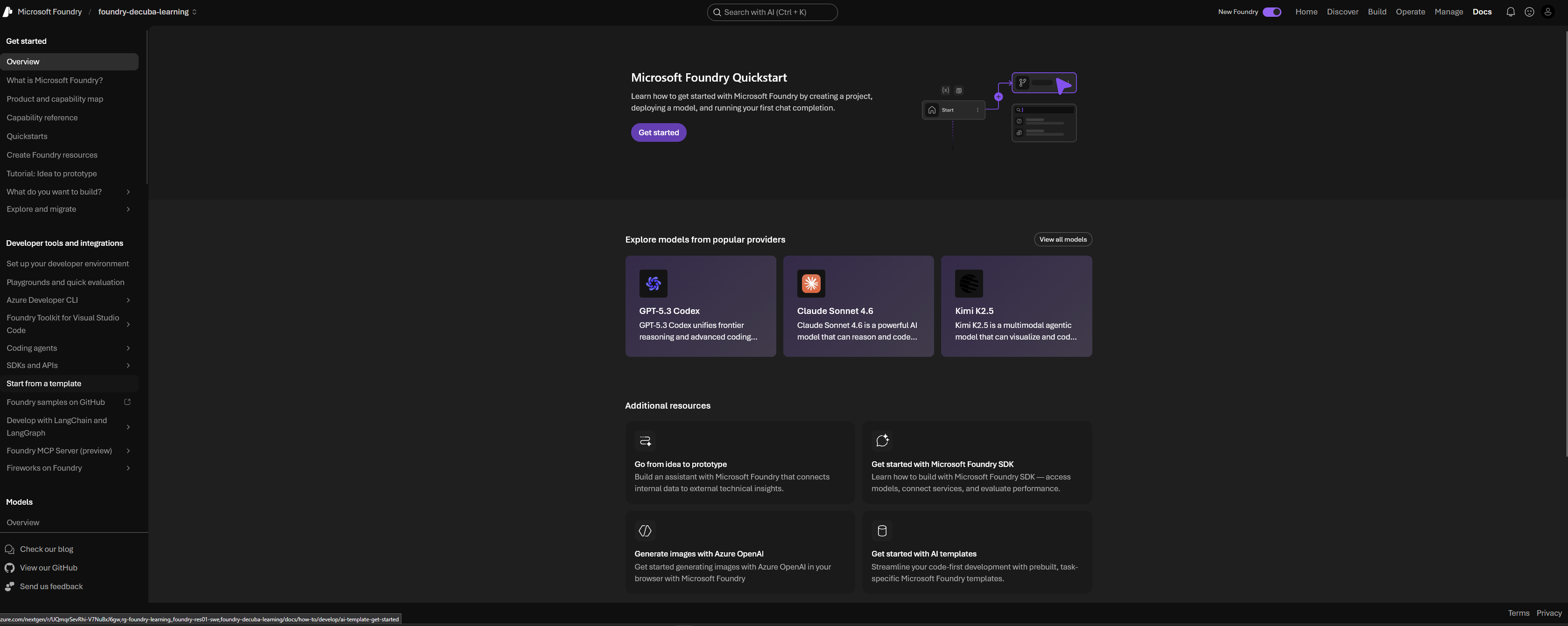
The new portal splits everything across six sections in the top navigation: Home, Discover, Build, Operate, Manage, and Docs. Each one gets its own left pane once you're inside it, rather than one long scrolling menu for the whole project.
Home is the project landing page: overview and quick actions, scoped to whichever project you have open.

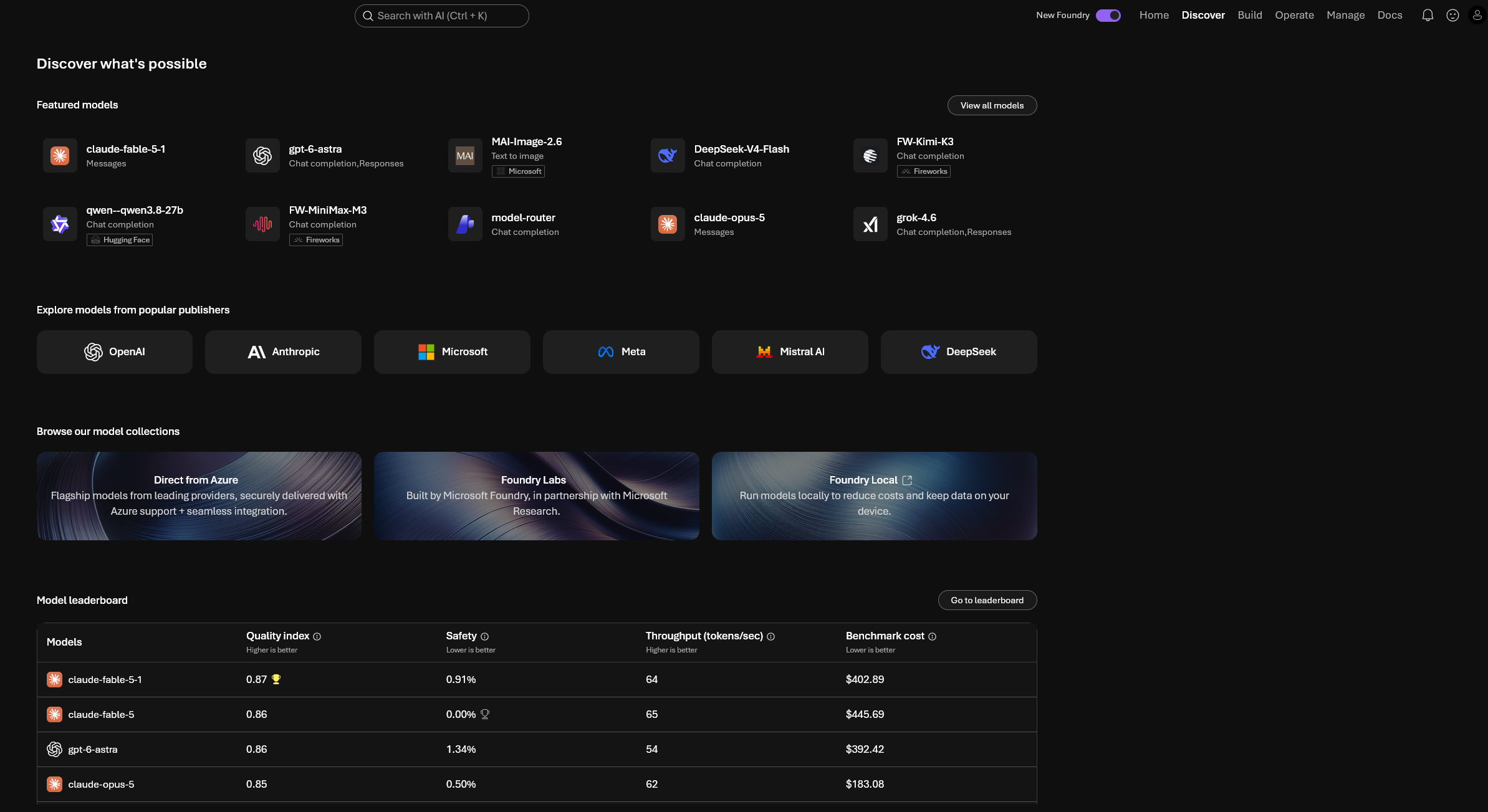
Discover is where you browse the model catalog and model benchmarks, scoped to the current project. This is what used to be a "Model catalog" entry in the old left pane.
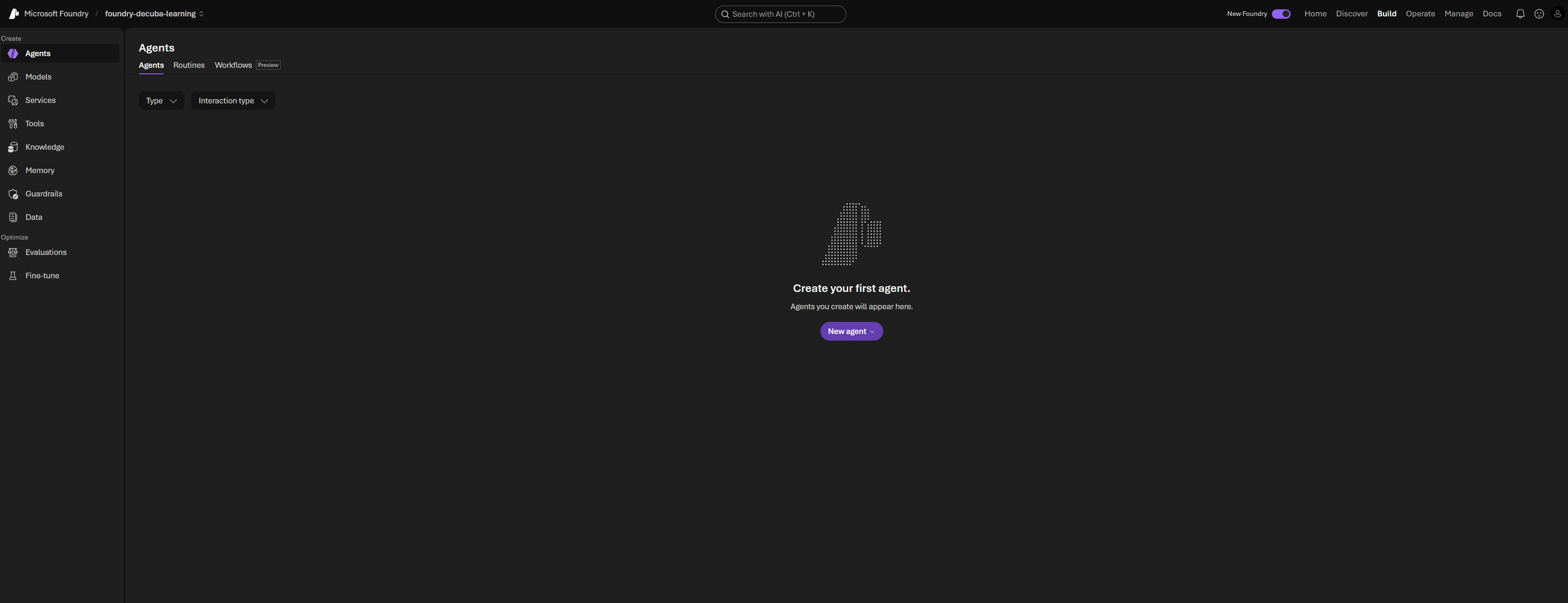
Build is where you'll spend most of your time: agents, models, playgrounds, evaluations, and fine-tuning, all scoped to the current project. Inside Build, things are further grouped under Create (Agents, Models, Services, Tools, Knowledge, Memory, Guardrails, Data) and Optimize (Evaluations, Fine-tune).
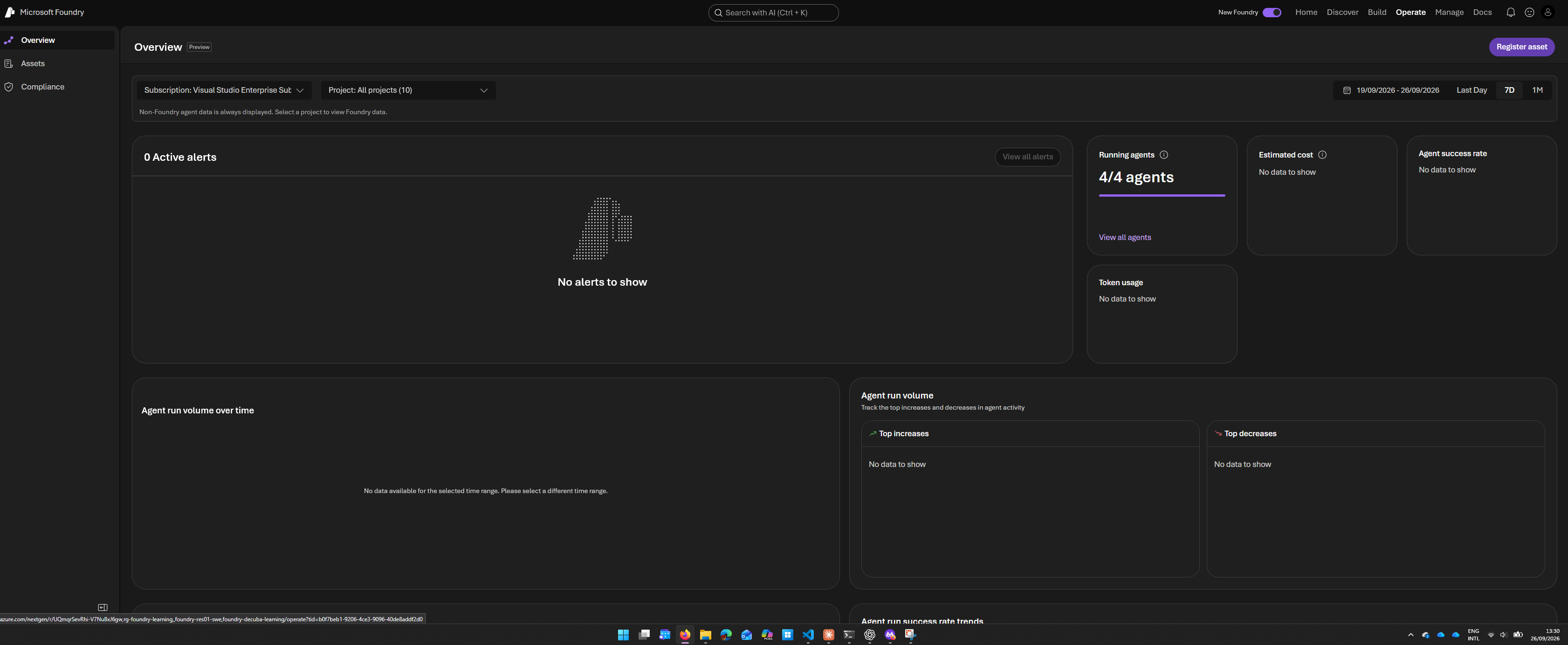
Operate covers compliance, fleet health, tracing, and assets, but scoped across all your projects, not just the one you're in. This is also where content filters and guardrails now live, moved from what used to be a "Guardrails + controls" tab.
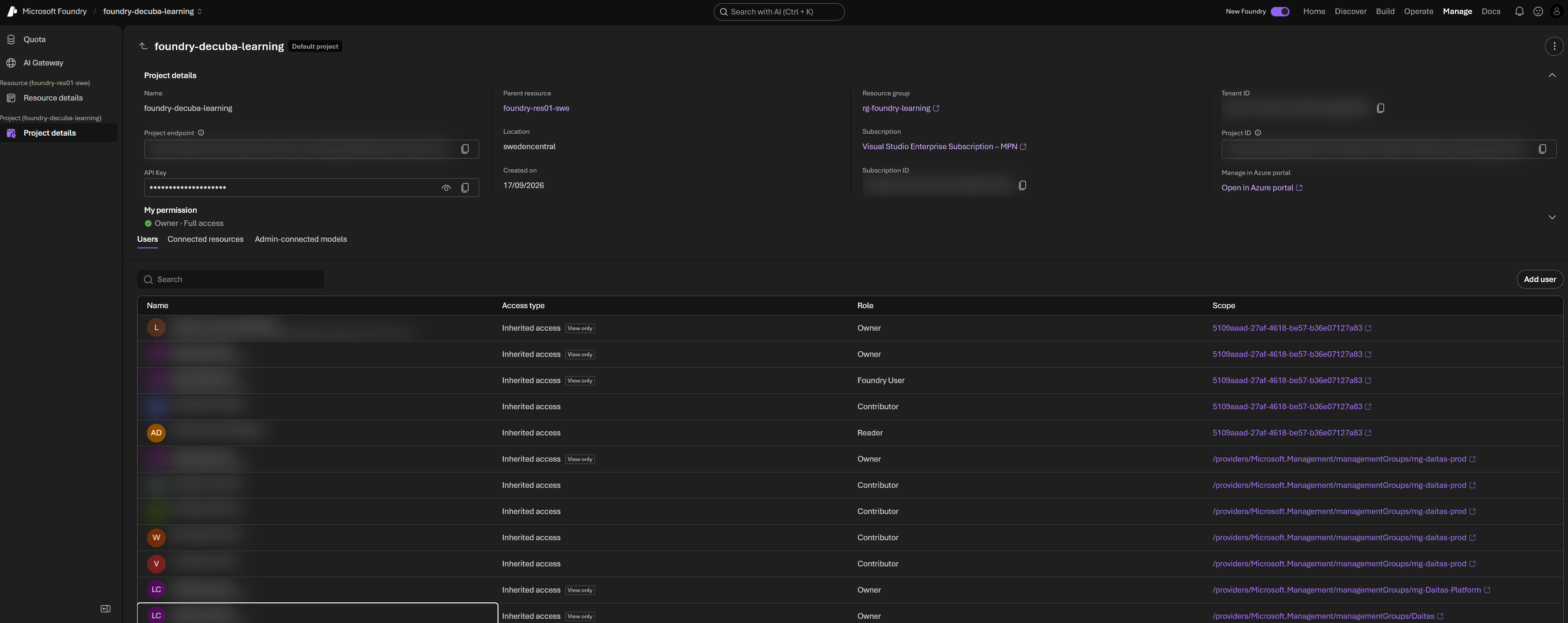
Manage is scoped to the current project and its underlying resource: quota, AI Gateway, resource details, project details. This absorbed most of what used to be called Management center.
Docs is just documentation links, nothing project-specific.
Deploying a model now drops you straight into the playground
One real behavior change worth knowing: deploying a model no longer just gives you a deployment details page. You land directly in that model's playground, ready to test it immediately. The playground itself now comes in a few flavors depending on the model type, a model playground for text, and separate images and video playgrounds that Foundry switches you into automatically based on what you deployed.
If your portal still looks like the old layout
Foundry runs both experiences side by side for now. Look for a New Foundry toggle in the top banner, it switches between the classic single-pane layout and the current one described above, and preserves your project context when you flip it. If you're on a hub-based project or a standalone Azure OpenAI resource rather than a Foundry project, you'll stay on the classic portal regardless, since the new experience only supports Foundry projects at this point.