Before you start
A Power Apps or Power Automate license with AI Builder access, or available AI Builder credits in your environmentStep 1: Find AI Builder
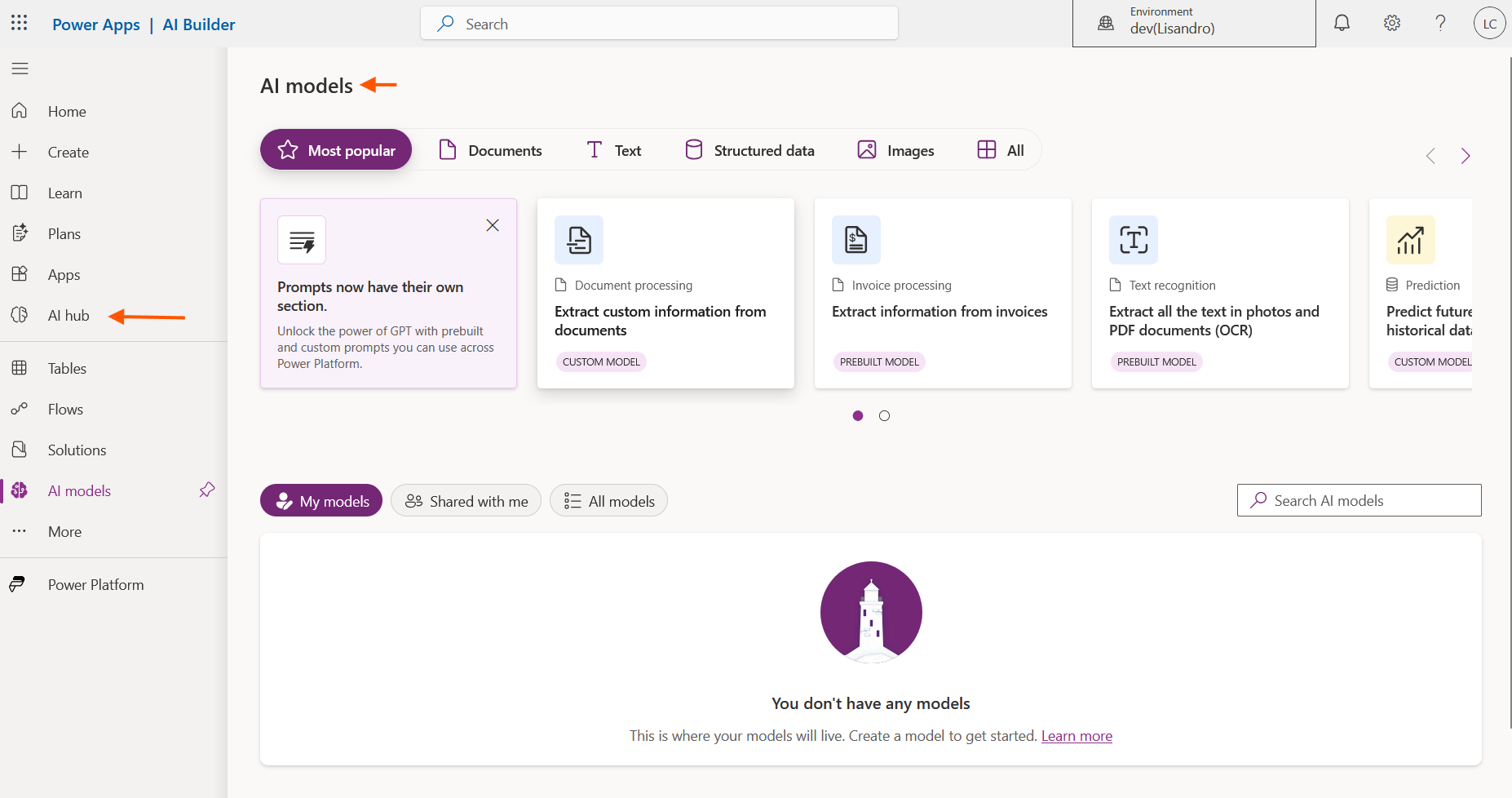
Step 2: Pick a model type
The AI models page lists every model type available, prebuilt and custom, grouped by what kind of data they work with: documents, text, structured data, images. Selecting one starts you on that model's specific setup path.
Step 3: Check your credit balance
Credits are managed at the tenant level, not per user, so this part needs admin access. In the Power Platform admin center (admin.powerplatform.microsoft.com), go to Licensing > Capacity add-ons > Summary tab.
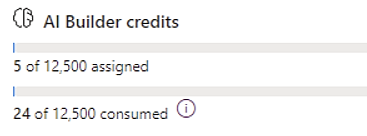
The Allocation and Consumption bars show what's been assigned to environments and how much of it has actually been used. If your organization hasn't allocated credits to a specific environment yet, that environment draws from the shared tenant-level pool by default, which an admin can also restrict.
Good to know
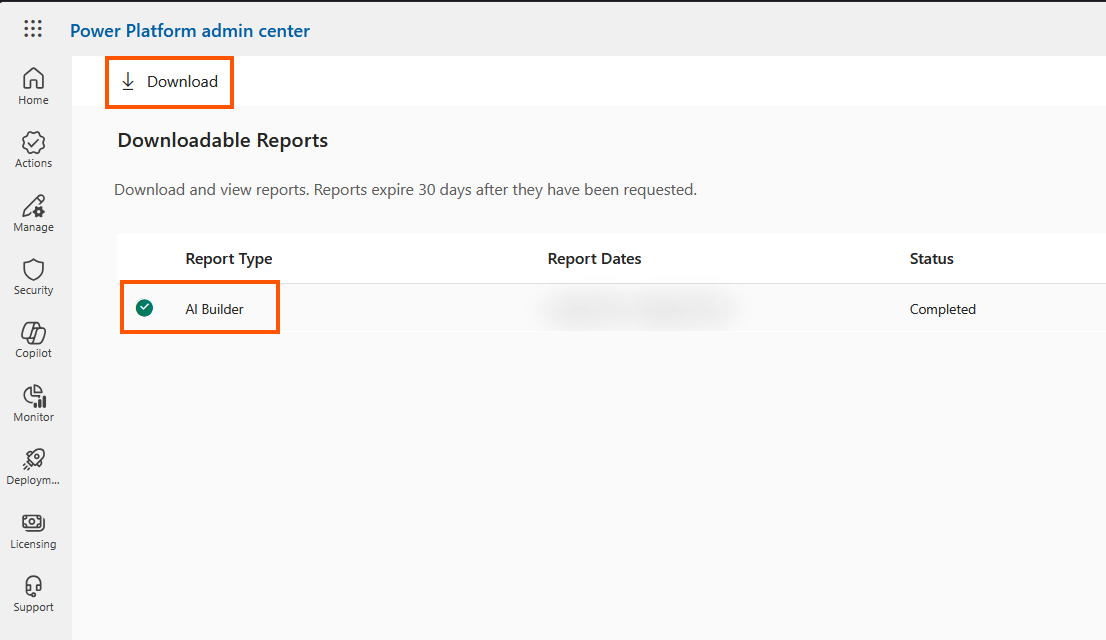
This view is tenant-wide. It won't tell you which specific flow or model is responsible for a spike in usage, for that you need the AI Builder consumption report (downloadable from the same Capacity page) or the Activity page in Power Automate, which shows individual predictions in real time.